OKI S700 Manual do Utilizador Página 1
Consulte online ou descarregue Manual do Utilizador para Copiadoras OKI S700. Oki S700 User's Manual Manual do Utilizador
- Página / 65
- Índice
- MARCADORES

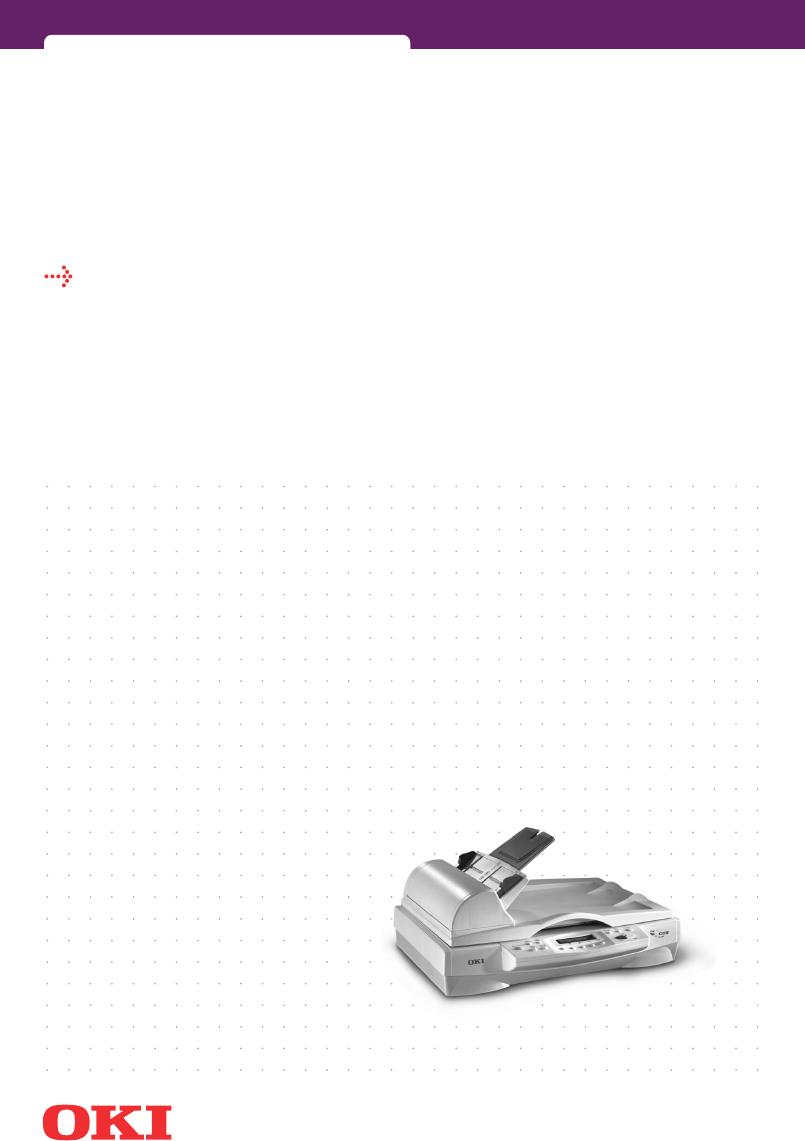
- S700 Scancopier 1
- PREFACE > 2 2
- CONTENTS 3
- CONTENTS > 4 4
- CONTENTS > 5 5
- FCC STATEMENT 6
- CAUTION! 7
- WARNING! 7
- INTRODUCTION 8
- INTRODUCTION > 9 9
- UNPACKING THE ADF 10
- INSTALLATION 11
- INSTALLING THE ADF 12
- INSTALLATION > 13 13
- CONNECTING THE CABLES 14
- INSTALLATION > 15 15
- INSTALLATION > 16 16
- USING S700 AS A COPIER 17
- THE CONTROL PANEL 19
- 1 2 3 12 13 14 20
- 7 8 9 10 11 20
- BEFORE MAKING COPIES 21
- DOCUMENT PLACEMENT 22
- MAKING SIMPLE COPIES 24
- CHANGING COPY DENSITY 25
- CHANGING CONTRAST 26
- ENHANCING COPY QUALITY 26
- MIXED/TEXT/PHOTO 27
- MAKING COPIES OF A 3D OBJECT 27
- AUTOMATIC POWER SAVING 28
- COLOR BALANCE 28
- USING S700 AS A SCANNER 29
- USER INTERFACE 31
- 8-BIT GRAY 32
- 8-BIT COLOR 32
- 24-BIT COLOR 32
- DETERMINING YOUR RESOLUTION 33
- ENHANCING YOUR IMAGE 34
- PREVIEW AUTO-AREA 35
- PAPER SIZE 35
- DESCREEN 36
- COLOR ADJUSTMENT 36
- AUTO LEVEL 37
- ADVANCED SETTINGS 37
- USER INTERFACE > 38 38
- CUSTOM SETTINGS 39
- MISCELLANEOUS 40
- USER INTERFACE > 41 41
- PRINTING VIA THE SCANCOPIER 42
- MENUS AND SETTINGS 44
- Item Setting Explanation 45
- JOB OPTIONS KEY 46
- REDUCE/ENLARGE KEY 47
- CONTRAST KEY 47
- LIGHT/DARK KEY 47
- NORMAL/QUALITY KEY 48
- MIXED/TEXT/PHOTO KEY 48
- COPY COUNT KEY 48
- ALL CLEAR KEY 49
- MAINTENANCE 50
- CLEANING THE ADF 51
- MAINTENANCE > 52 52
- MAINTENANCE > 53 53
- CLEARING A PAPER JAM 54
- SPECIFICATIONS 55
- PRINTER PROFILE UPDATE 56
- FIRMWARE UPDATE 57
- OKI EUROPE 58
- OKI EUROPE > 59 59
- OKI ASIAN-PACIFIC 60
- LIMITED WARRANTY: 61
- UNITED STATES AND CANADA 61
- OVERNIGHT EXCHANGE: 62
- INDEX > 64 64
Resumo do Conteúdo
S700 Scancopieruser's guide
INTRODUCTION > 10UNPACKING THE ADFThe S700 Automatic Document Feeder (ADF) is a convenient addition to your current S700. With the ADF, you can aut
INSTALLATION > 11INSTALLATIONPRECAUTIONSKeep the machine out of direct sunlight. Direct exposure to the sun or excessive heat may cause damage.Do n
INSTALLATION > 12INSTALLING THE ADF1.Remove the standard Scancopier document cover (1) by opening the cover and lifting the studs (2) from the hing
INSTALLATION > 133.Insert the notched corners of the ADF Paper Support (5) into the clip joints on the ADF Paper Tray (4).4.Insert the notched corn
INSTALLATION > 14CONNECTING THE CABLESConnect the cables as shown.1.Parallel printer cable – to parallel data port on printer.2.Parallel PC cable –
INSTALLATION > 15INSTALLING UTILITIES FROM THE CD-ROMThe utilities you need to install depend on how you plan to use your Scancopier:l For copying
INSTALLATION > 16For minimum system requirements, refer to the Unimessage Pro User’s Guide.Follow the steps below, omitting step 5(a).1.Start Micro
USING S700 AS A COPIER > 17USING S700 AS A COPIERThe Menu key on the control panel provides access to a wide range of features designed to provide
USING S700 AS A COPIER > 18To restore the menu settings to factory defaults, press and hold the All Clear key for about 5 seconds.Other keys on the
USING S700 AS A COPIER > 19THE CONTROL PANEL1. Contrast: Used to adjust the copied /scanned image contrast. Press (▲) to increase or (▼) to decreas
PREFACE > 2PREFACEEvery effort has been made to ensure that the information in this document is complete, accurate, and up-to-date. The manufacture
USING S700 AS A COPIER > 209. Select: Press to activate the currently displayed setting in the menus. (An asterisk, “*”, will appear on screen.)10.
USING S700 AS A COPIER > 21BEFORE MAKING COPIESSince your Scancopier can be connected to different printers, you have to ensure that it is set for
USING S700 AS A COPIER > 22Other items such as double-sided (duplex) printing, stapling and hole punching, can also be selected via the control pan
USING S700 AS A COPIER > 23l Paper with ink not totally dry;l Paper of inconsistent thickness, such as envelopes;l Paper with wrinkles, curls, fold
USING S700 AS A COPIER > 24MAKING SIMPLE COPIES1.Load your original document.2.If you wish to make more than one copy, press Copy Count once for ea
USING S700 AS A COPIER > 25ENLARGING OR REDUCING YOUR ORIGINALLike most copiers, the S700 also features an auto enlargement/reduction function to r
USING S700 AS A COPIER > 26CHANGING CONTRASTContrast refers to the range between the darkest and lightest portions of the image. The greater the co
USING S700 AS A COPIER > 27MIXED/TEXT/PHOTOThe Scancopier can be set to optimise copy operation based on the content of the original. This function
USING S700 AS A COPIER > 28AUTOMATIC POWER SAVINGYour Scancopier features automatic power saving after periods of inactivity of 15 minutes, 2 hours
USING S700 AS A SCANNER > 29USING S700 AS A SCANNER1.Open your scanning application.2.Pull down the File menu and choose Select Source.If the Selec
CONTENTS > 3CONTENTSPreface ... 2FCC Statement ...
USING S700 AS A SCANNER > 306.Select the scanning method you want to use on the Scan Method drop-down menu.7.Select the mode you want to use for yo
USER INTERFACE > 31USER INTERFACESCAN METHODSelect how you want to scan on the Scan Method drop-down menu.lSimplex/One-page — use this setting if y
USER INTERFACE > 32the image looks like a gray image yet it consumes much less disk space. Newspapers generally use halftone images. Since halftone
USER INTERFACE > 33DETERMINING YOUR RESOLUTIONProper control of the resolution obtains satisfactory detail of scanned images. Resolution is measure
USER INTERFACE > 34ENHANCING YOUR IMAGEBRIGHTNESSAdjusts the lightness or darkness of an image. The higher the value, the brighter the image.CONTRA
USER INTERFACE > 35each pixel will be changed into its complementary color with the Invert command.MIRRORClick on the Mirror button to reverse the
USER INTERFACE > 36UNITSThe Units button indicates the measuring system that is in use (inch, cm, or Pixel) (See Width and Height.).DESCREENClick o
USER INTERFACE > 37AUTO LEVELClick on the Auto Level button to add shadow to reveal more detail in an image.ADVANCED SETTINGSClick on the Advanced
USER INTERFACE > 38Color BalanceWhen you select the Color Balance button, a dialog box appears that allows you to adjust the color of the image so
USER INTERFACE > 39For example, if your image contains red text or a red background, choose R channel (red) to remove the red text or red backgroun
CONTENTS > 48-Bit Color ... 3224-Bit Color ...
USER INTERFACE > 40Configuration settingsThe Configuration Settings tab allows you to customize some special settings.Energy Saving Mode—check the
USER INTERFACE > 41Scan: Click on the Scan button to scan the area with the specified parameters.You can define the area to be scanned by dragging
USER INTERFACE > 42PRINTING VIA THE SCANCOPIERThe following illustration shows all cable connections, although you may not use all of them dependin
USING S700 WITH UNIMESSAGE PRO > 43USING S700 WITH UNIMESSAGE PROWhen you start Unimessage Pro, the Welcome window is displayed. A brief summary of
MENUS AND SETTINGS > 44MENUS AND SETTINGSThis section describes the menu functions accessed via the Scancopier’s operator panel.MENU KEYSettings ch
MENUS AND SETTINGS > 45Fit to A3 Off, On Adjusts magnification to fit A3 paper if printer supports this size.Sleep 15Min Aft, 2HR After, 4H After,
MENUS AND SETTINGS > 46JOB OPTIONS KEYThis key is used to change settings for the next copying job. Press the Job Options key to advance through th
MENUS AND SETTINGS > 47REDUCE/ENLARGE KEYThis key is used to set the ratio for scanned image reduction or enlargement.Press the Reduce/Enlarge key
MENUS AND SETTINGS > 48NORMAL/QUALITY KEYThis key is used to select normal copying resolution (300dpi) or high quality (600dpi). Normal is perfectl
MENUS AND SETTINGS > 49ALL CLEAR KEYAs mentioned previously, settings changed using the Menu key and activated using the Select key are saved into
CONTENTS > 5Appendix A - Printer Profile Utility ... 56Printer Profile update ...
MAINTENANCE > 50MAINTENANCECLEANING THE DOCUMENT GLASSThe Scancopier is designed to be maintenance-free. However, it still needs to be cleaned occa
MAINTENANCE > 51CLEANING THE ADFDisregard this section if you do not have an ADF.From time to time, the pad assembly and feeding rollers of the ADF
MAINTENANCE > 52REPLACING THE ADF SNAP-IN PAD MODULEAfter approximately 20,000 pages have been fed through the ADF, the ADF pad may be worn out, an
MAINTENANCE > 533.Remove the new ADF pad module from its box.4.Press both arms of the ADF snap-in pad module inward with two fingers.5.Place the AD
CLEARING A PAPER JAM > 54CLEARING A PAPER JAMDisregard this section if you do not have an ADF.In the event of a paper jam in the ADF, follow the pr
SPECIFICATIONS > 55SPECIFICATIONSS700 SPECIFICATIONOptical Resolution 600x600dpiEnhanced Resolution 9600x9600dpiCopy Area Max. 21.6 x 35.5cm (8.5 x
APPENDIX A - PRINTER PROFILE UTILITY > 56APPENDIX A - PRINTER PROFILE UTILITYWhen you take delivery of your S700 Scancopier it is already loaded wi
APPENDIX A - PRINTER PROFILE UTILITY > 572.In the left hand pane, select the required printer then click the Add button to insert it into the right
OKI EUROPE > 58OKI EUROPEOki Systems (UK) Limited550 Dundee RoadSlough Trading EstateSlough, SL1 4LETel: +44 (0) 1753 819819Fax: +44 (0) 1753 81989
OKI EUROPE > 59Oki Systems (Iberica), S.A.Paseo de la Habana17628036 - Madrid, EspañaTel: 91-3431620Fax: 91-3431624http://www.oki.esOKI Systems (No
FCC STATEMENT > 6FCC STATEMENTFederal Communications Commission Radio Frequency Interference Statement for 120-Volt Models.This equipment has been
OKI ASIAN-PACIFIC > 60GREECEΑντιπρόσωπος της Oki Systems στην ΕλλάδαCPI S.A.Μεσογείων 348, 153 41 Αγ. ΠαρασκευήΤηγ: 65 45 802-5Fax: 65 45 805Email:
LIMITED WARRANTY: UNITED STATES AND CANADA > 61LIMITED WARRANTY:UNITED STATES AND CANADAOki Data Americas, Inc. (Oki Data) warrants this product to
OVERNIGHT EXCHANGE: UNITED STATES AND CANADA > 62OVERNIGHT EXCHANGE:UNITED STATES AND CANADAIf you choose to use our Overnight Exchange service, ca
OKI DATA AMERICAS SERVICE CENTERS > 63OKI DATA AMERICAS SERVICE CENTERSUNITED STATESOki Data Americas Inc.2020 Bishops Gate Blvd.Mt. Laurel, NJ 080
INDEX > 64INDEXAADFInstalling ...12Unpacking ...10All Clear button...20
Central HouseBalfour Road, HounslowTW3 1HYUnited Kingdomtel +44 (0) 20 8219 2190Fax +44 (0) 20 8219 2199S700 Scancopier07034802 ISS.01
NOTES, CAUTIONS AND WARNINGS > 7NOTES, CAUTIONS & WARNINGSOnly use genuine Oki Original consumables to ensure the best quality and performance
INTRODUCTION > 8INTRODUCTIONCongratulations on your purchase of the S700 Scancopier.Please spend a few minutes reading through this User’s Guide an
INTRODUCTION > 9UTILITIES AND DOCUMENTATION CD-ROM CONTENTSThe CD-ROM contains the following software:l Printer Profile Utility: to enable you to u
Manuais e produtos relacionados com Copiadoras OKI S700
 (101 páginas)
(268 páginas)
(2 páginas)
(101 páginas)
(268 páginas)
(2 páginas)
 (280 páginas)
© 2020, manymanuals-pt.com. Todos os direitos reservados. | 0.080 s |
 Manymanuals.com
 Manymanuals.de
 Manymanuals.fr
 Manymanuals.it
 Manymanuals.pl
 Manymanuals.cz
 Manymanuals.es
 Manymanuals-pt.com
Comentários a estes Manuais